Overview #
Rank King allows you to automatically sort Shopify collections based on your custom ranking criteria.
By displaying collections in a strategic order, you can create a more engaging storefront that highlights your most important products and collections.
Setup Instructions #
Step 1
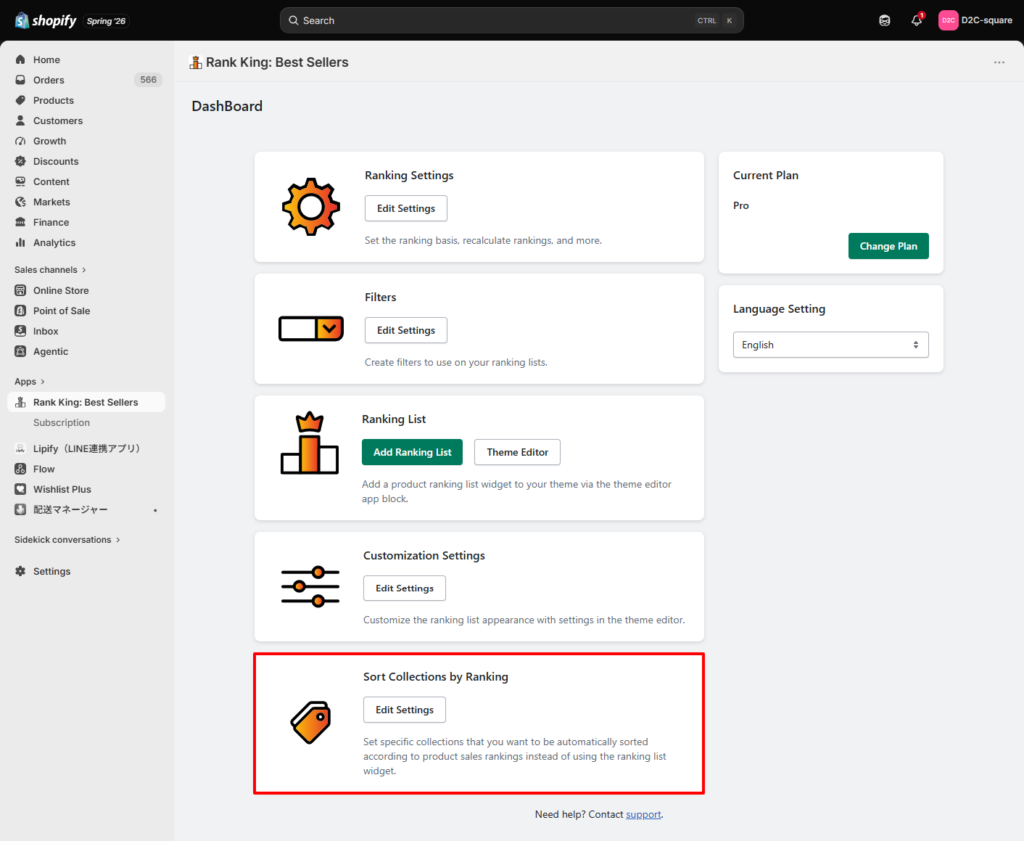
On the Rank King Dashboard, scroll to the Sort Collections by Ranking section.
Step 2
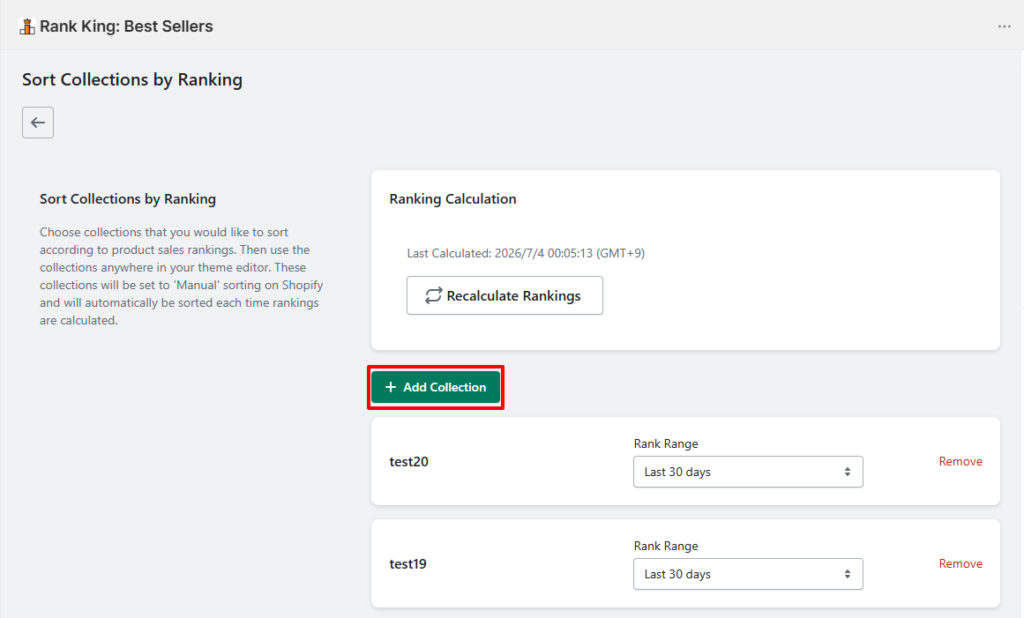
Click Add Collection.
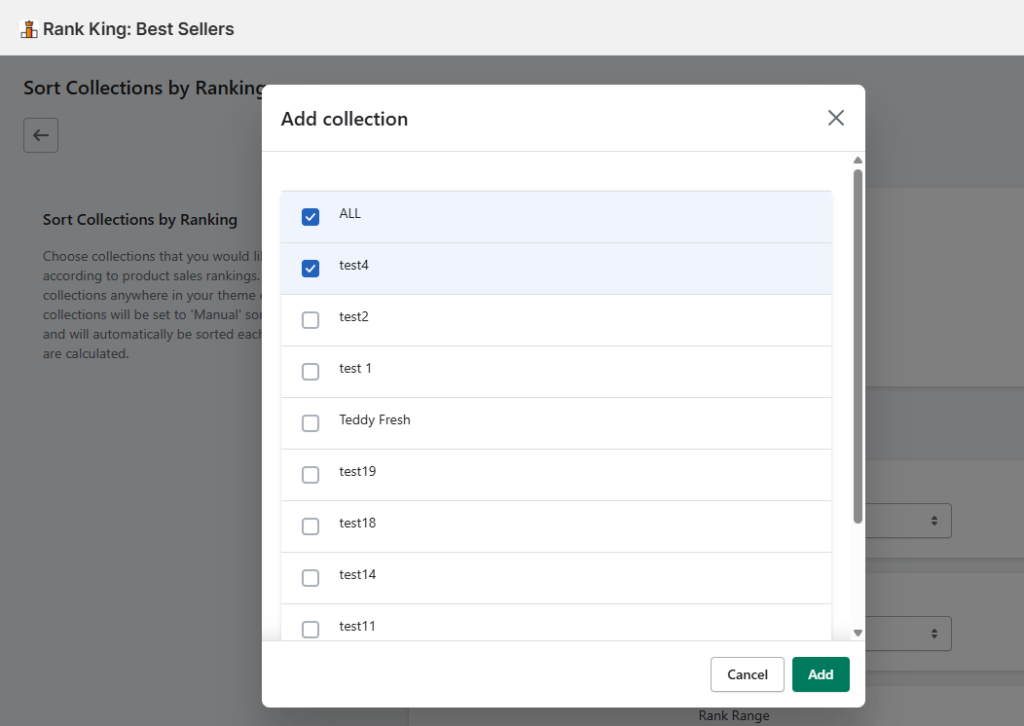
Select the collection you want to sort, then click Add to save your selection.
Step 3
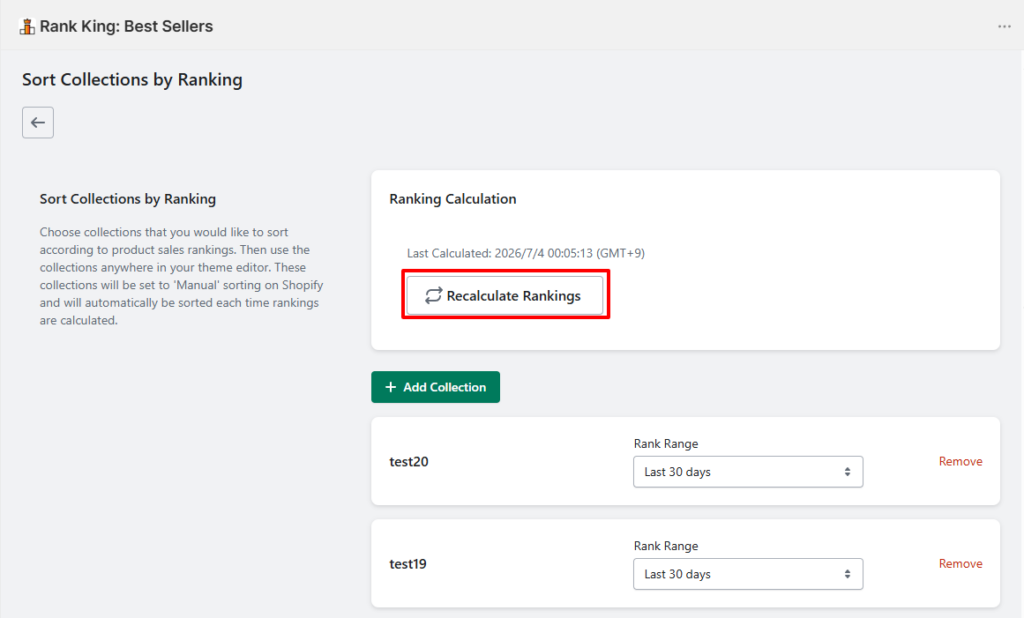
After adding a collection, click Recalculate Rankings.
The collection order will be updated based on the ranking criteria configured in Rank King.
Once the recalculation is complete, your selected collection will automatically be sorted according to your ranking settings.
Notes #
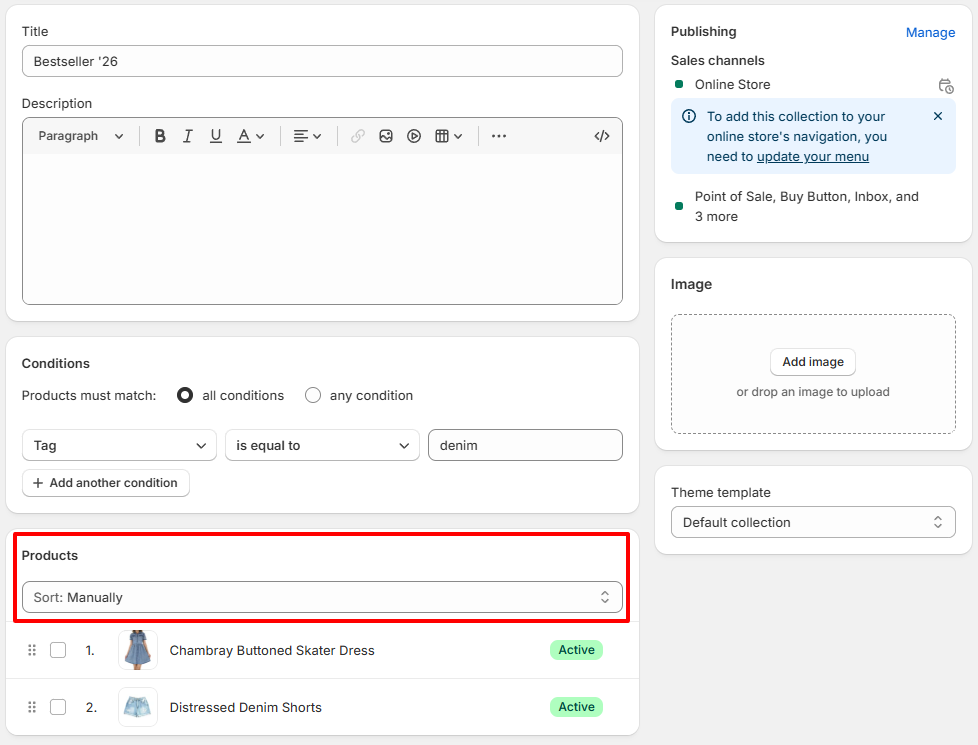
When a collection is managed by Rank King, Shopify will display its Sort setting as Manual in the Shopify Admin.
This is expected behavior, as Rank King updates the collection order automatically.
Collection URL #
When customers view the collection using Shopify’s default Featured sorting, the URL will either:
- have no
sort_byparameter, or - include
?sort_by=manual
Example: https://your-store.myshopify.com/collections/collection-name?sort_by=manual
With Rank King, you can optimize both your product rankings and collection order to create a storefront that better reflects your brand and merchandising strategy.


