Before you can display product rankings, you need to create a collection in Shopify and configure your ranking criteria in Rank King.
Although Rank King comes with default ranking settings, we recommend customizing them to match your store’s needs.
This guide covers the required Shopify setup and the recommended initial configuration for Rank King.
Overview
1. Create a Collection in Shopify #
Rank King generates rankings based on Shopify collections.
Before using Rank King, make sure you have created the collection(s) that you want to display rankings for.
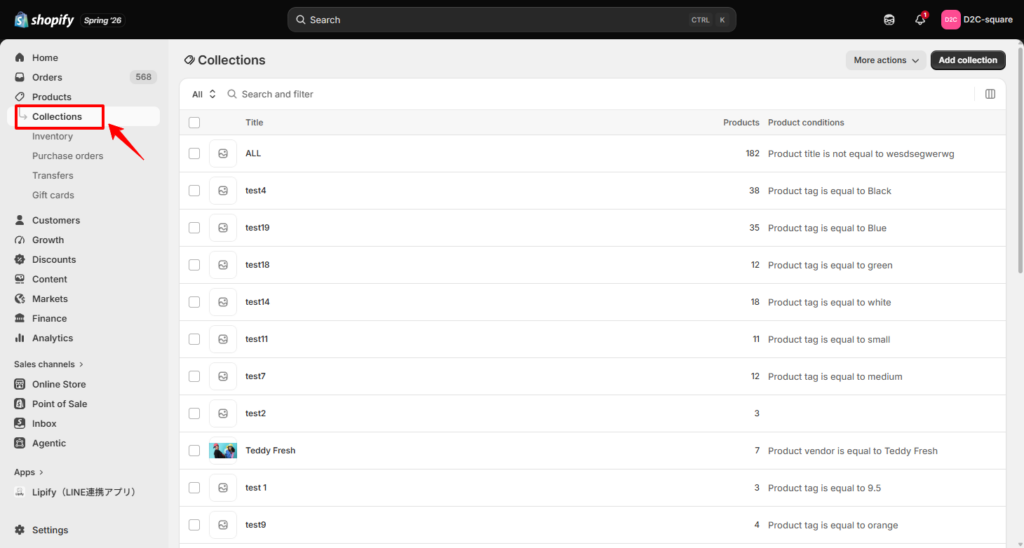
Go to: Shopify Admin → Products → Collections → Create Collection
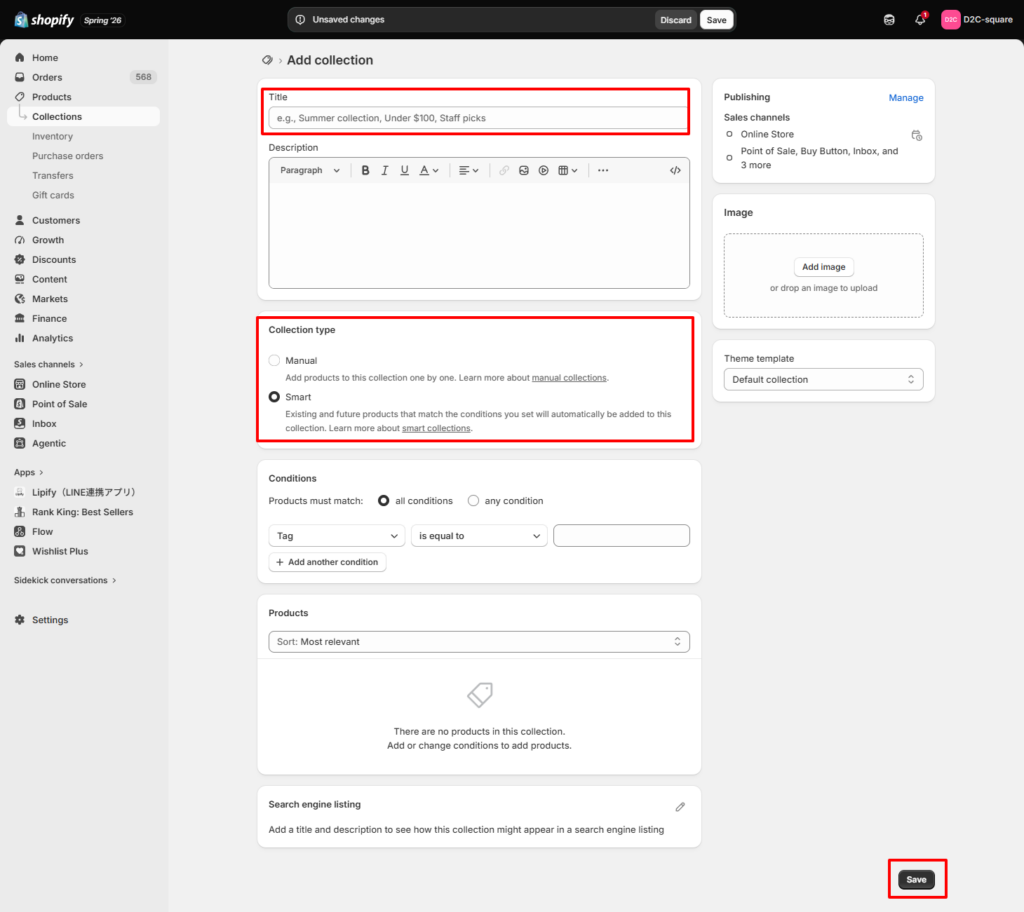
Configure the collection as needed.
Enter a Title, choose the Collection Type (Manual or Automated), configure the collection conditions if necessary, and click Save.
For more information about Shopify collections, please refer to Shopify’s official documentation:
Shopify Collections Documentation
https://help.shopify.com/manual/products/collections
2. Configure Ranking Criteria #
Next, configure the ranking criteria for your store.
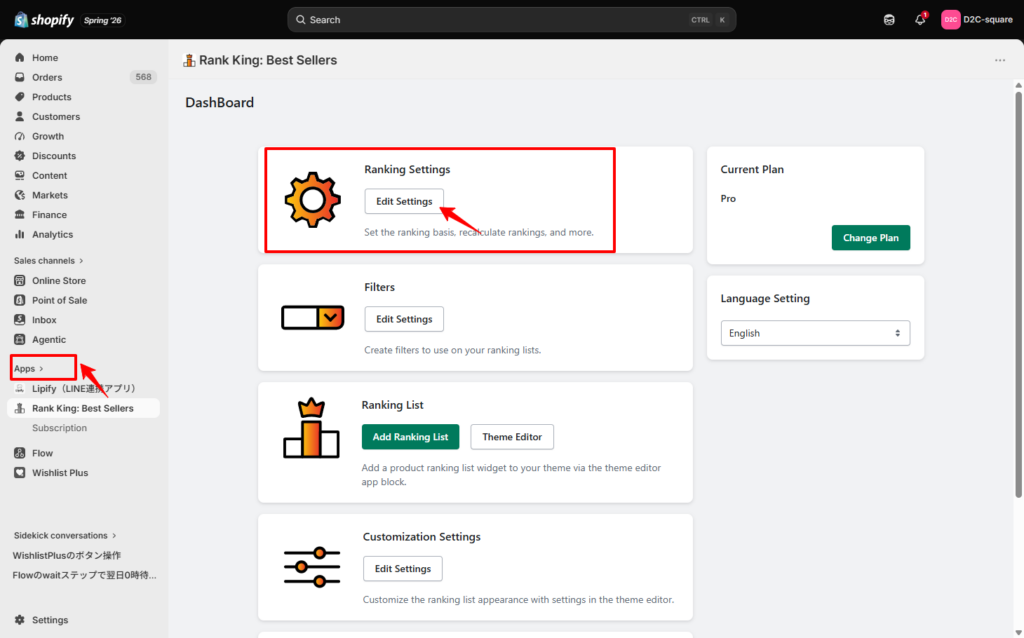
Go to: Apps → Rank King → Ranking Settings
2.1 Choose the Ranking Method #
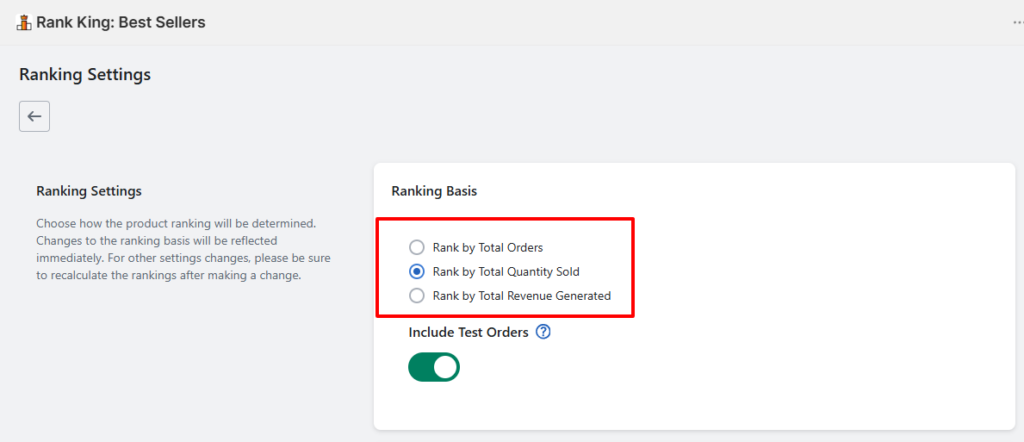
Select how Rank King should calculate your product rankings.
By default, products are ranked by Total Orders, which ranks products based on how many times they have been ordered.
You can also choose:
- Rank by Total Quantity Sold — Rank products by the total quantity sold.
- Rank by Total Revenue Generated — Rank products by total sales revenue.
Choose the method that best fits your merchandising strategy.
2.2 Configure Automatic Ranking Updates #
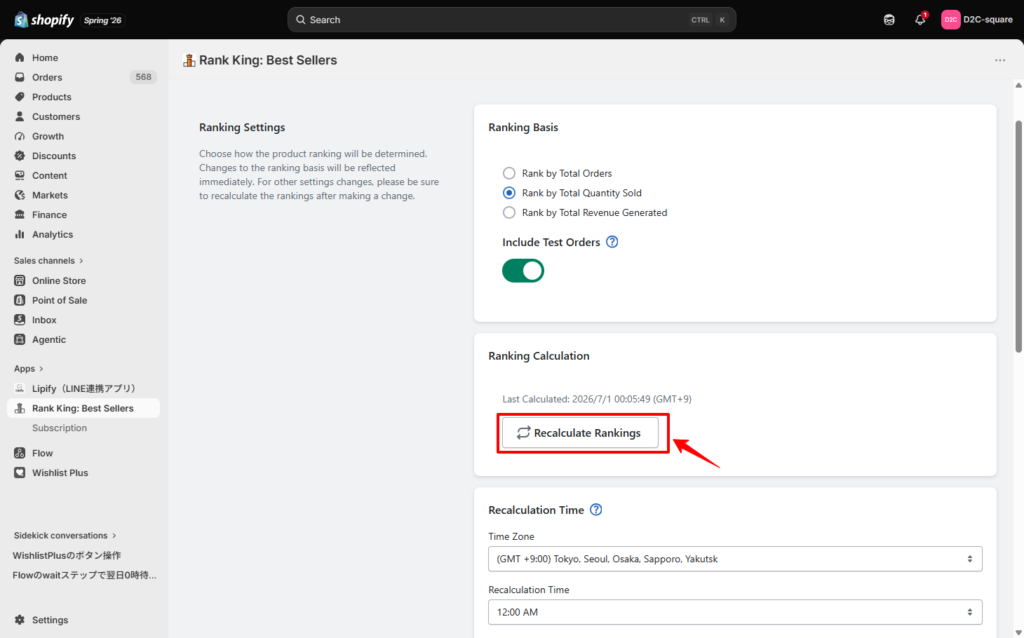
Set when Rank King automatically recalculates your rankings.
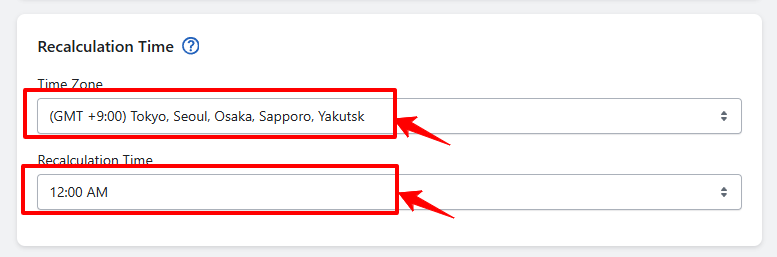
Configure both the Time Zone and the Recalculation Time.
For example, to update your rankings every day at 12:00 PM (Japan Standard Time):
- Time Zone: (GMT +9:00) Tokyo, Seoul, Osaka, Sapporo, Yakutsk
- Recalculation Time: 12:00
If you’d like to update your rankings immediately, click Recalculate Rankings under Manual Ranking Calculation.
2.3 Set the Minimum Number of Ranked Products #
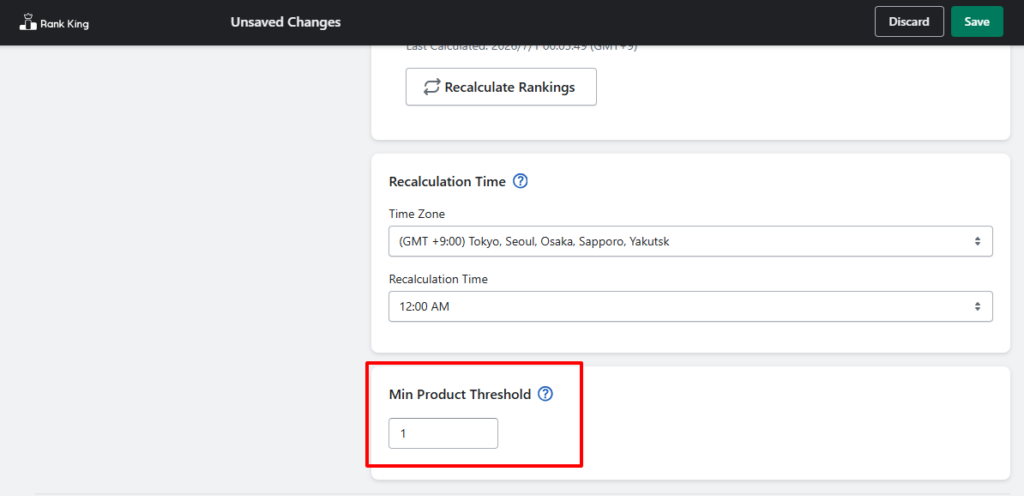
Specify the minimum number of products required before a ranking is displayed.
This prevents rankings with only one or two products from appearing on your storefront.
If there aren’t enough products to meet the minimum threshold, Rank King will continue displaying the previous ranking data (for example, last week’s rankings) until enough products are available.
If no historical ranking data is available, the ranking will not be displayed.
To configure this setting:
Minimum Product Threshold → Enter the desired minimum number
2.4 Configure a Custom Date Range (Optional) #
You can create rankings for a specific sales period, such as a seasonal campaign or promotional event.
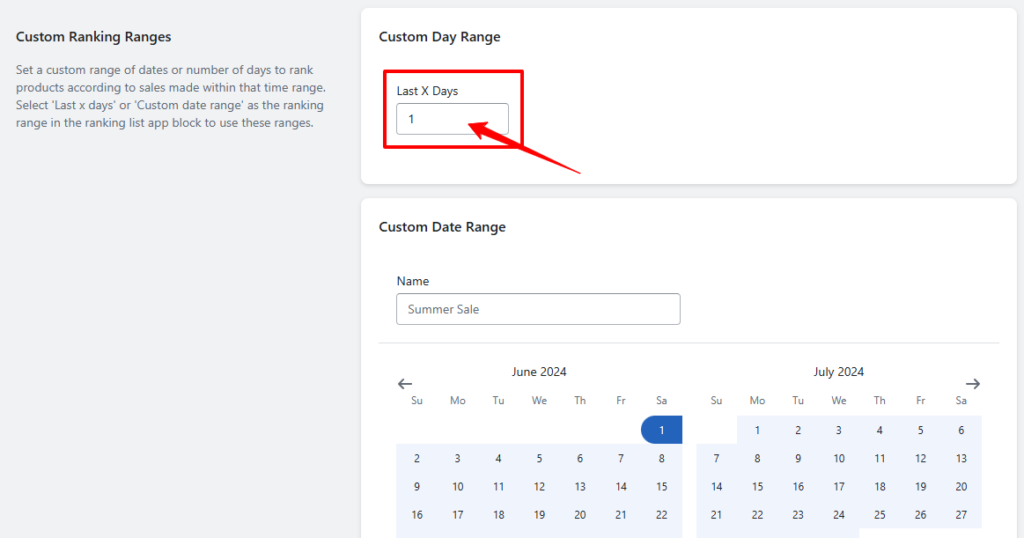
Option 1: Rank by the Past X Days #
Select: Custom Date Range → Past X Days
Then enter the desired number of days.
Example:
Past 7 DaysPast 30 Days
Past 90 Days
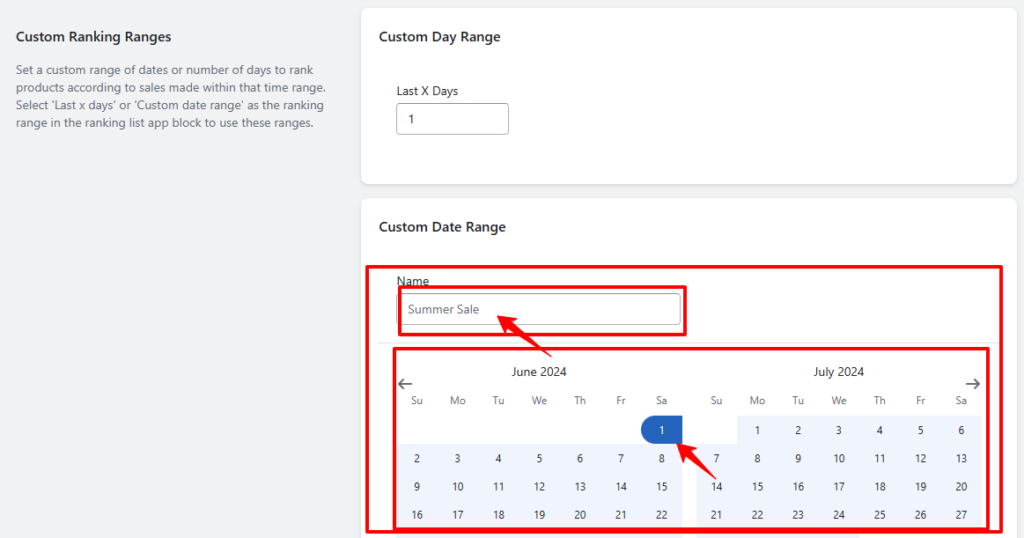
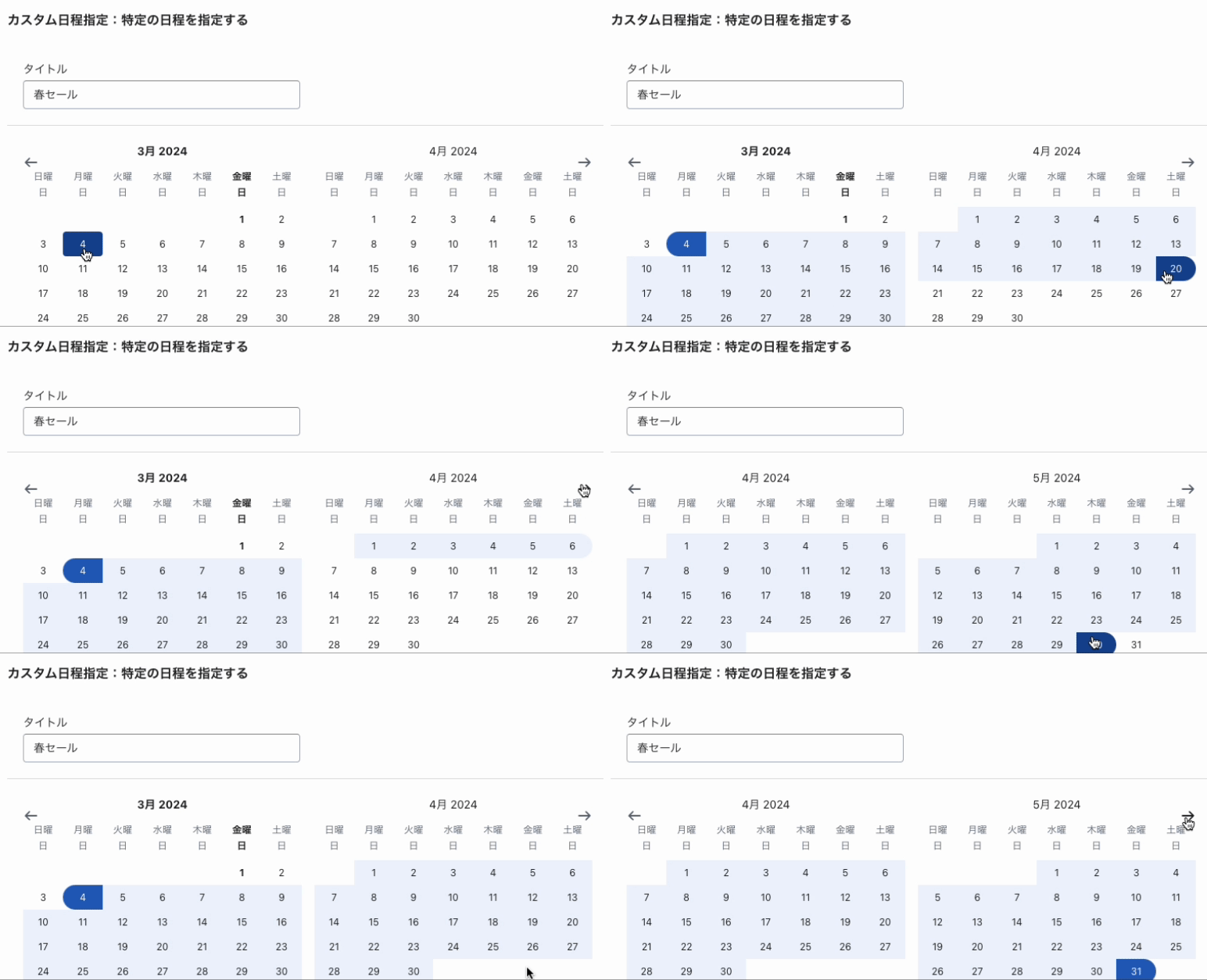
Option 2: Rank by a Specific Date Range #
Select: Custom Date Range
Then configure:
- Title — Enter a custom name for the ranking period.
- Date Range — Select the desired start and end dates using the calendar.
This is useful for creating rankings for events such as:
- Black Friday
- Holiday Sales
- Summer Campaigns
- Anniversary Promotions
Once these settings are complete, you’ll be ready to display product rankings anywhere on your Shopify storefront.


