This guide explains how to add a Rank King ranking section to your Shopify store and configure its display settings.
1. Add the Rank King Section #
You can add a ranking section to any page in your Shopify theme.
Go to: Shopify Admin → Sales Channels → Online Store→Themes → Customize
Select the page where you want to display the ranking, such as:
- Home page
- Collection page
- Ranking page
- Any other customizable page
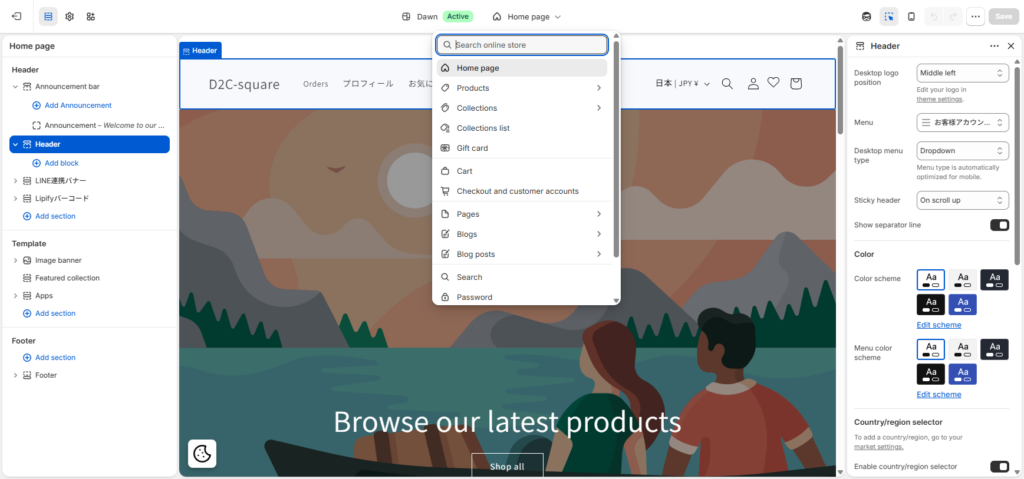
Select the location where you’d like to place the ranking.
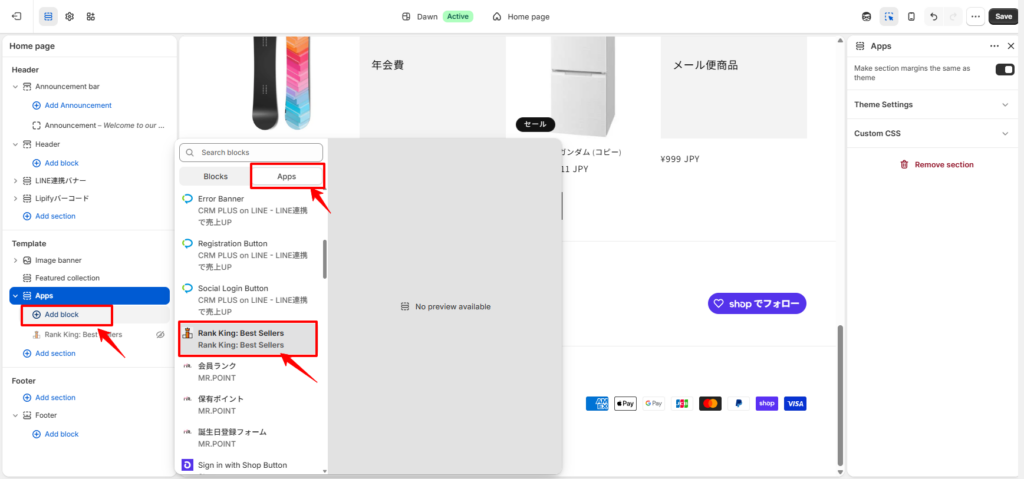
Click: Add Section → Apps → Rank King
The Rank King ranking section will be added to your selected page.
2. Configure Ranking Settings #
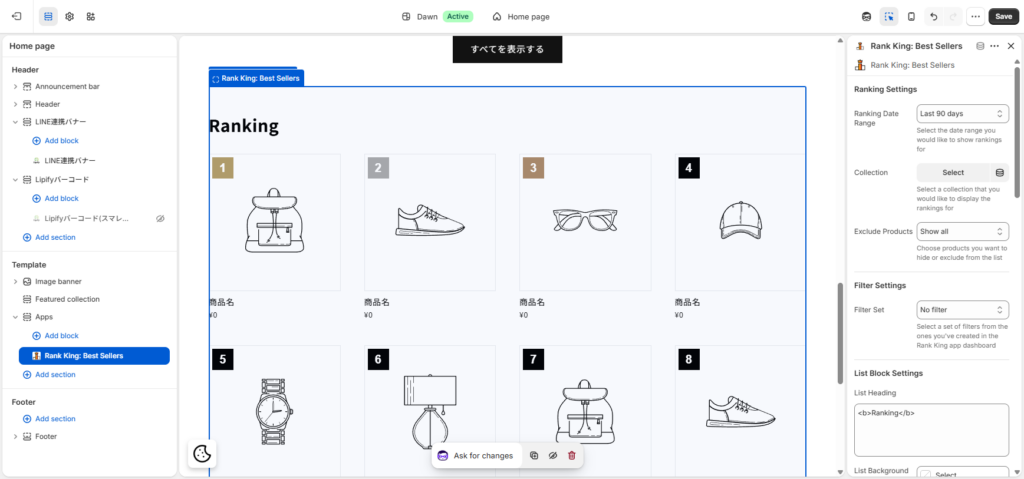
After adding the Rank King section, configure how the ranking should be displayed.
Open the Shopify Theme Editor by going to:
Shopify Admin → Sales Channels → Online Store → Themes → Customize
Then select either: Apps → Rank King
The Rank King section you added to the page
2.1 Select the Ranking Period #
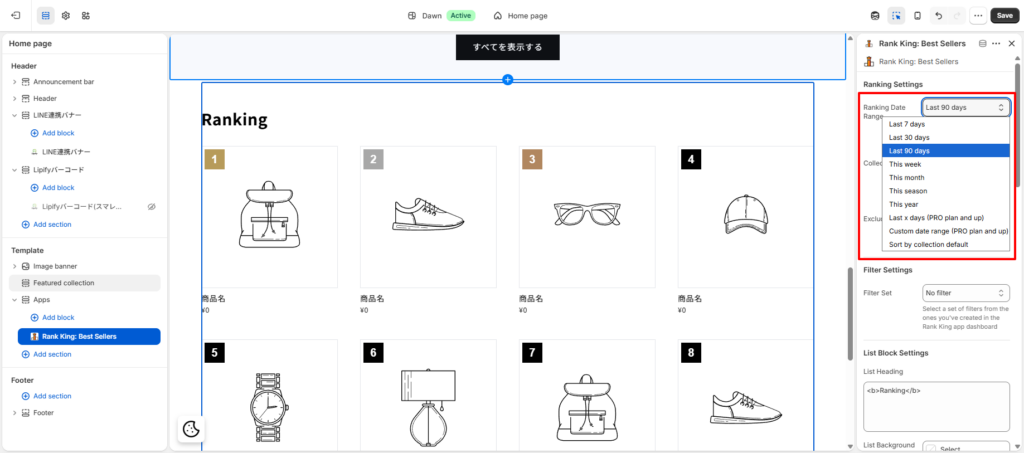
Choose the time period used to calculate the ranking.
Go to: Ranking Period
Then select the desired period.
For example:
This Week
This Month
This Season
This Year
Past X Days
Custom Date Range
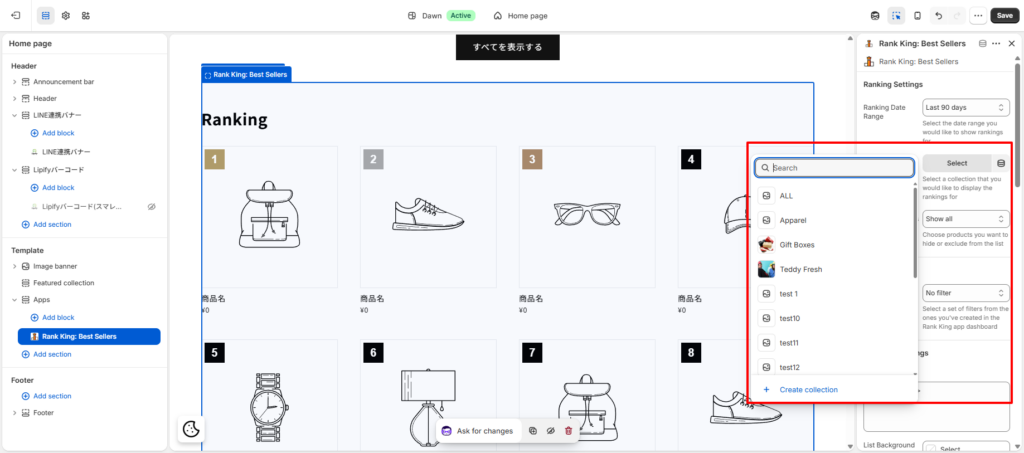
2.2 Choose a Collection #
Select the Shopify collection that will be used to generate the ranking.
Go to: Select Collection
Choose the collection you want to display.
If you haven’t created a collection yet, please refer to Create a Collection in Shopify in the previous guide.
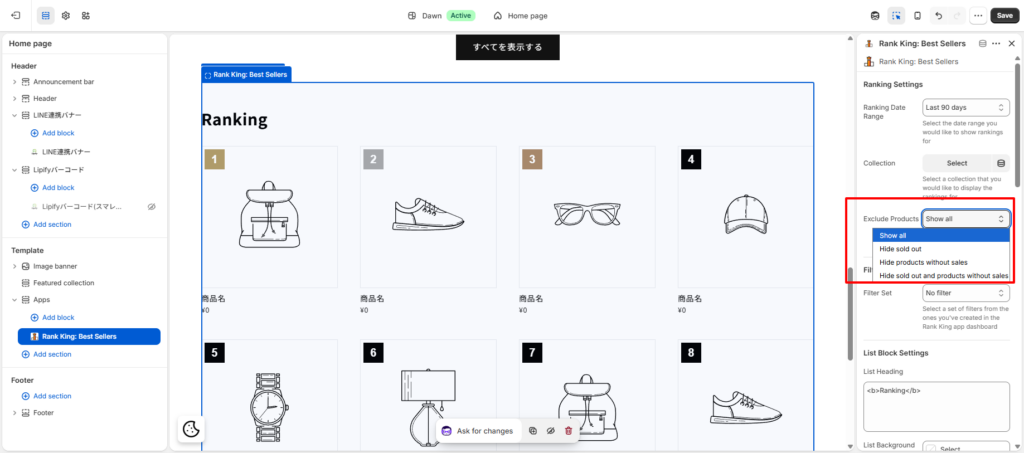
2.3 Exclude Products from the Ranking #
You can exclude specific products from appearing in the ranking.
Go to: Products to Exclude
Out-of-stock products
Sample products
Gift cards
Internal or hidden products
Your ranking is now ready to display on your storefront with your selected collection, ranking period, and display settings.


