- 1. Set the Ranking Heading
- 2. Configure the Slider
- 3. Customize the Link Button
- 4. Configure Ranking Icons
- Ranking Icon: Style Select the icon style you want to use.
- Ranking Icon Position: Choose where the ranking badge should appear on the product card.
- 5. Adjust the Layout
- 6. Configure Product Images
- Image Aspect Ratio
- Hover Effect
- 7. Advanced Design Settings
- Ranking List
- Product Card
- Product Information
- Tab Filter
- Dropdown Filter
This guide explains how to customize the appearance of your Rank King ranking section to match your store’s design.
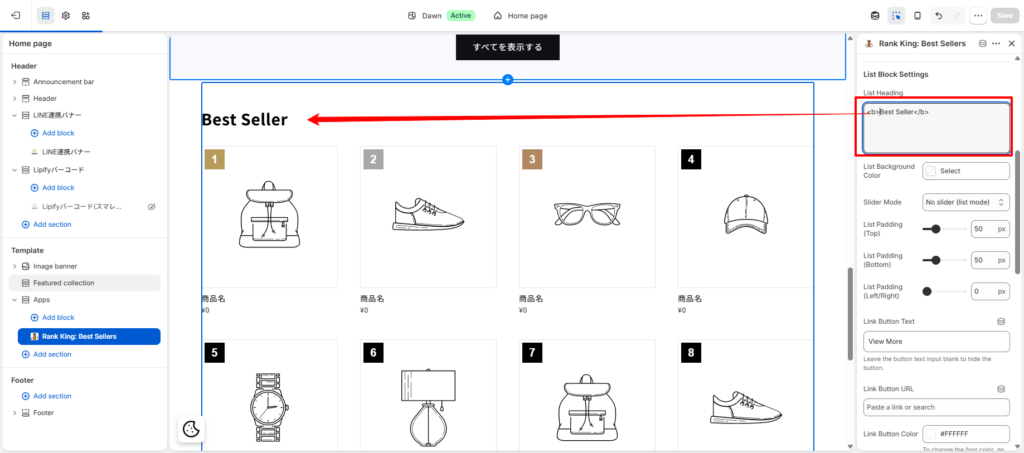
1. Set the Ranking Heading #
Customize the title displayed above the ranking section.
Go to: Ranking Heading
Enter any text you’d like to display.
Example:
Best Sellers
Top Products
Weekly Best Sellers
Trending Items
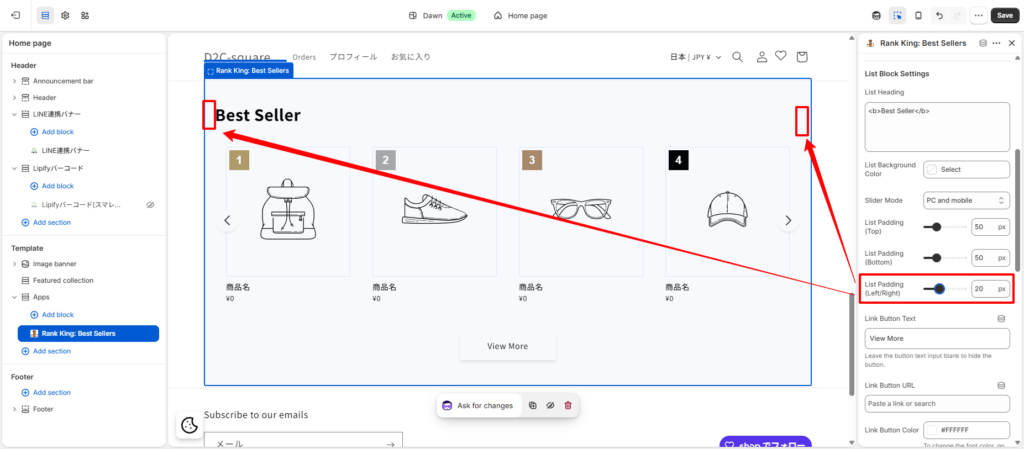
2. Configure the Slider #
If you’re displaying rankings as a slider, you can customize its appearance.
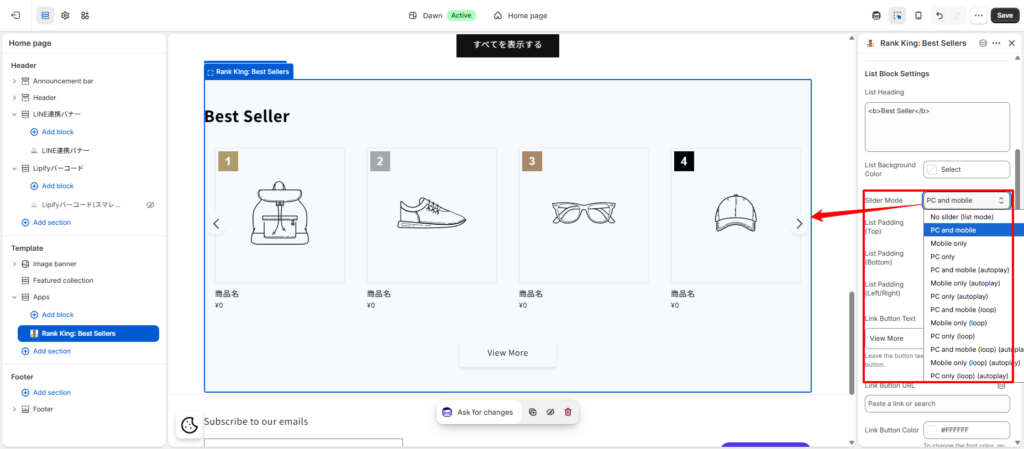
Configure the following settings:
Enable Slider
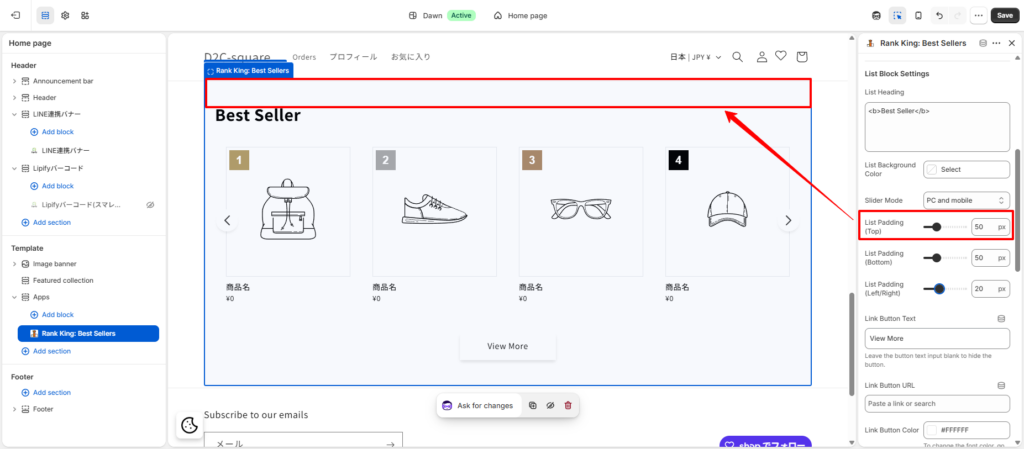
Top Padding
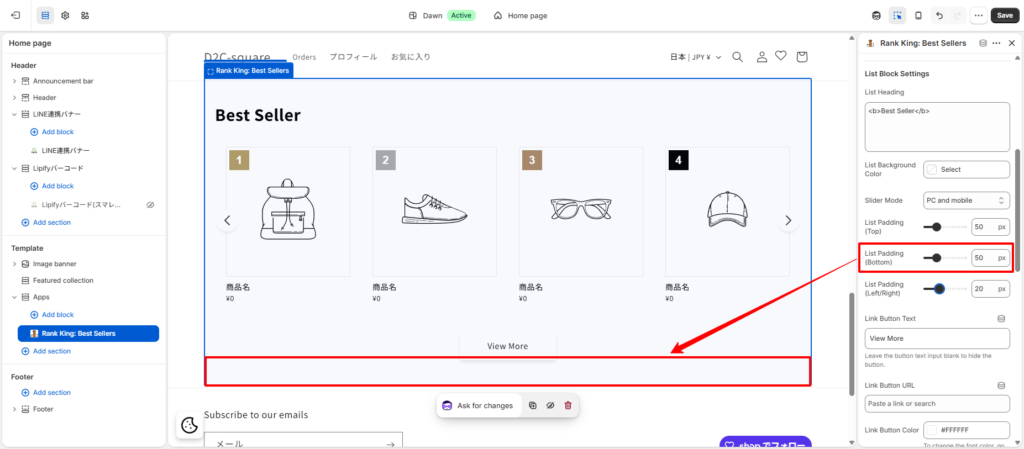
Bottom Padding
Left & Right Padding
Adjust these values to match your storefront’s layout and spacing.
「Padding(TOP)」→
「Padding(Bottom)」→
「Padding(Left/Right)」→
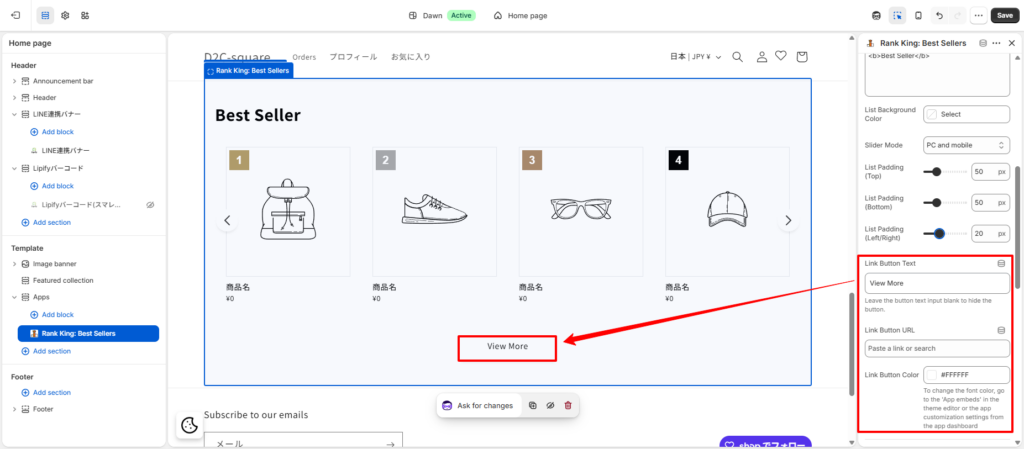
3. Customize the Link Button #
Configure the “View More” button displayed below the ranking.
Enter the text to display on the button.
Examples:
View More
Shop All
See All Rankings
Link Button URL
Enter the destination URL for the button.
Examples:
Ranking page
Collection page
Promotional page
Link Button Color
Choose the button color that matches your store’s branding.
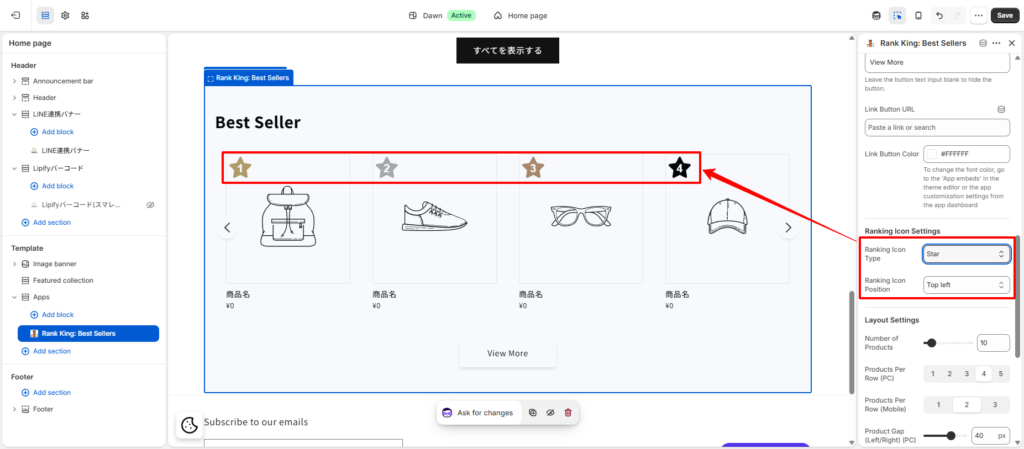
4. Configure Ranking Icons #
Customize the appearance of the ranking badges.
Ranking Icon: Style Select the icon style you want to use. #
Ranking Icon Position: Choose where the ranking badge should appear on the product card. #
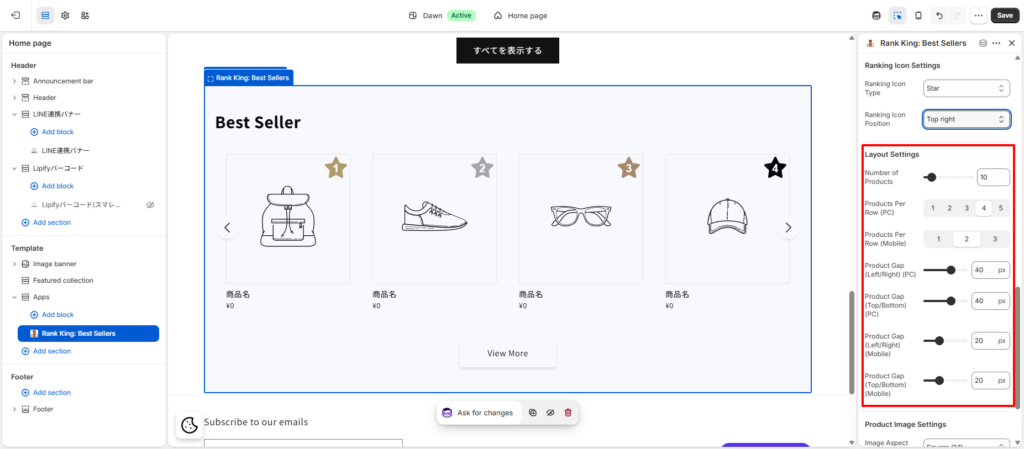
5. Adjust the Layout #
Customize how products are displayed in the ranking.
Configure the following settings:
Number of Products Displayed
Products Per Row (Desktop)
Products Per Row (Mobile)
Horizontal Spacing Between Products (Desktop)
Vertical Spacing Between Products (Desktop)
Horizontal Spacing Between Products (Mobile)
Vertical Spacing Between Products (Mobile)
These settings allow you to optimize the layout for both desktop and mobile devices.
6. Configure Product Images #
Customize how product images are displayed.
Image Aspect Ratio #
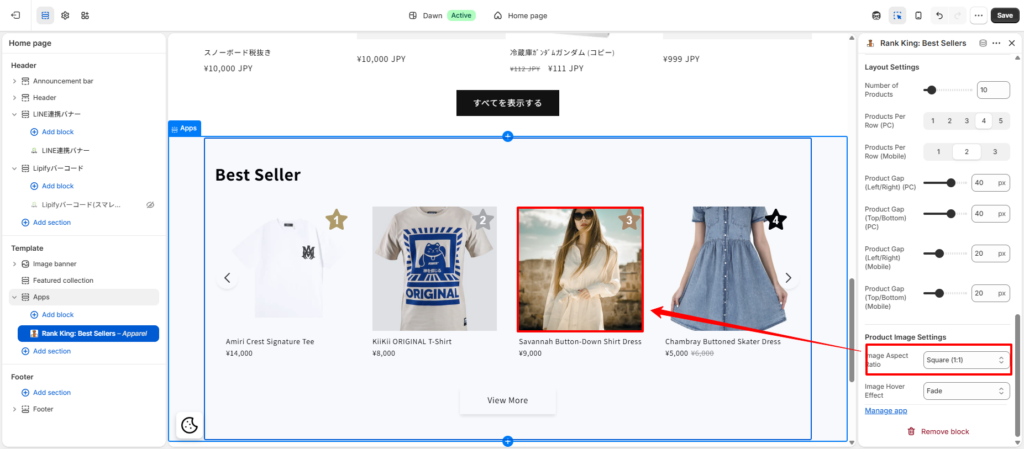
Hover Effect #
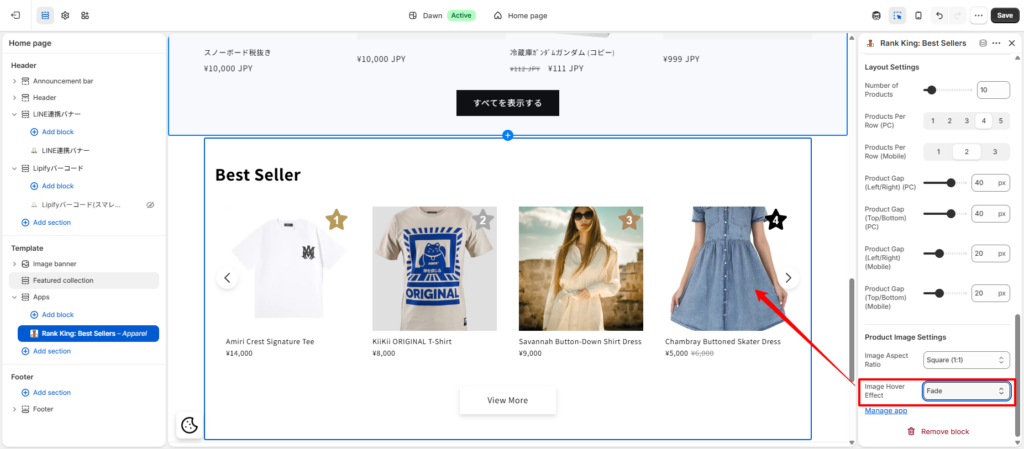
7. Advanced Design Settings #
For more detailed customization, open the embedded Rank King app settings.
Go to: Embedded App → Rank King
From here, you can customize additional design options.
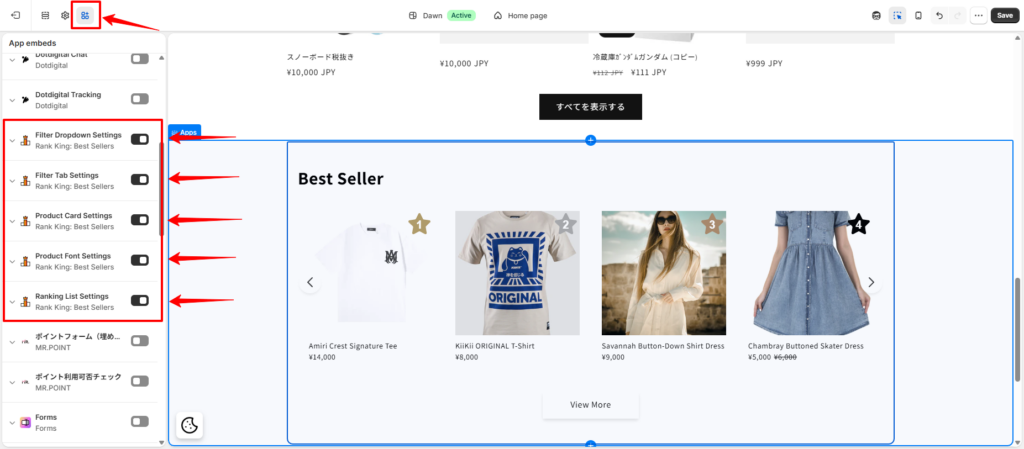
Ranking List #
Configure:
- Ranking badge colors
- Ranking badge size
- Ranking badge width
Product Card #
Customize:
- Sold Out badge
- Product card background
- Product card width
Product Information #
Adjust:
- Font size
- Font color
- Typography
Tab Filter #
Customize:
- Tab titles
- Tab width
- Layout
Dropdown Filter #
Customize:
- Dropdown width
- Font settings
- Typography
You can combine these settings to create a ranking section that matches your store’s branding and provides the best shopping experience for your customers.


